Bluetooth Devices
What type Of Bluetooth dongle should I use?
You will need a Bluetooth 4 adapter of some kind. For Windows 10 and Linux desktops, we usually recommend the following adapter (Amazon links below, availability may differ in other countries):
This specific adapter is what our developers use to test the library. That said, most Bluetooth 4 dongles should work fine for most toys.
Other countries may have luck with searching "CSR 4.0 bluetooth dongle", as this is a commonly used chipset:
- USB Bluetooth 4.0 Adapter, Techkey Bluetooth Dongle CSR 4.0 Bluetooth Empfänger Transmitter (Amazon Germany)
- Onvian Bluetooth Adapter USB CSR 4.0 Dongle Receiver (Amazon Australia)
However, some toys from WeVibe and Satisfyer require dongles with a specific brand of radio. The dongle above should work for them, but other dongles may not. For more info on these devices, see their brand specific sections of the FAQ.
Will my on-board/motherboard Bluetooth radio work?
For macOS hardware newer than 2012, the on-board radio works well. For pre-2012 macOS hardware, the aforementioned dongle is recommended.
For Windows and Linux desktops and laptops, we do not recommend using on-board radios unless they have an external antenna. They usually have less broadcast range (Note: Radios that have an external antenna hooked up to them tend to work better, and may be exempt from this). We've also had many issues with the drivers that come with on-board Bluetooth radios not working with our software. If you are using a system with an on-board radio and are having issues, we recommend buying the dongle listed above.
Can I use a Bluetooth 5/6 dongle?
At this point, Bluetooth 5 dongles seem to work well enough with Intiface Central on Windows/Linux, especially the ones we recommend above. Note that off-brand dongles that require their own drivers may still be an issue.
Bluetooth 6 is now the new one, and we have not done much testing.
Is there any way I can improve my Bluetooth connection?
- Plugging dongles directly into towers/laptops can cause issues with line of sight and signal degradation. We recommend plugging dongles into either an external USB hub.
- Using a USB 2 hub may work better than using a USB 3 hub, as USB 3 hubs tend to emit EMI which can obscure the Bluetooth radio.
- If you are in a situation where you may be moving around a lot (i.e. VR, cam modeling, etc...), another possible solution is to put a Bluetooth USB dongle on the end of a USB extension cable, and place the dongle near you (or in cases where you're clothed, possibly in a pants pocket if available). This may alleviate disconnects and provide a more reliable connection.
In the end, remember: Radios are black magic, and there's only so much anyone can do here.
When should I pair my device with my operating system?
You should NOT NEED TO PAIR your device with your operating system, unless specifically called out in a hardware brand page on the FAQ (for instance, WeVibe or Satisfyer). Most Bluetooth LE connections are handled by Buttplug and do not require pairing.
Can I use my phone as a Bluetooth device relay?
Yes. Intiface Central now has Repeater Mode, which allows the phone to proxy to the Desktop. Otherwise, games/apps may provide ways to change the network address of Intiface Central to your phone instead of your desktop/laptop. Refer to the documentation of the program you're trying to use for more info.
I connected my Bluetooth device to my phone, but my computer can't see it
If you connected your Bluetooth device to your phone before connecting it to your desktop, you may have paired it with your phone, meaning your device will not talk to any other machines. You will need to unpair the device with your phone before you try connecting it to your desktop via Intiface Central or other apps.
Most (but not all) Bluetooth LE devices do not need to be paired with machines in order to talk to them. However, some brands (like WeVibe and Kiiroo) do have hardware that requires pairing. If a piece of hardware is required to pair, it will be called out here in the brand specific questions section.
I'm Running Win10/11 and have a working Bluetooth adapter but Intiface still can't see any devices
Some Bluetooth adapters come with drivers that are compatible with the older device system that's been present in Windows for much longer than the BLE/GATT support added in Win10/11 (which is what Buttplug/Intiface use to discover and connect to devices). Those older drivers will make the adapter look like it's working in some places but not in Buttplug/Intiface.
The most common offender is the CST driver, but there are Broadcom drivers that have this issue too.
Ideally, you'd have just plugged in the adapter and let Windows auto install the drivers, but that's
not always the intuitive thing to do, especially when the packaging for the adapters often tell you
to install their drivers. If you did install the vendor supplied drivers, first thing to try is
uninstalling them (usually from Apps and Features) and then removing and replugging-in the
adapter.
How can I tell if I'm using the wrong driver?
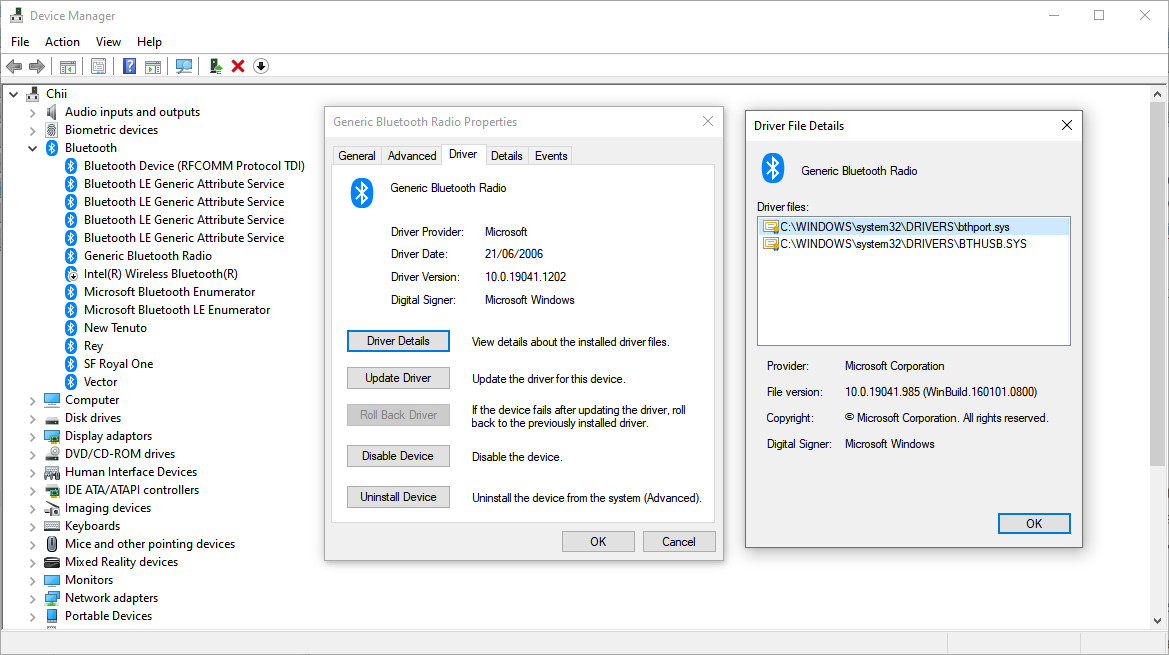
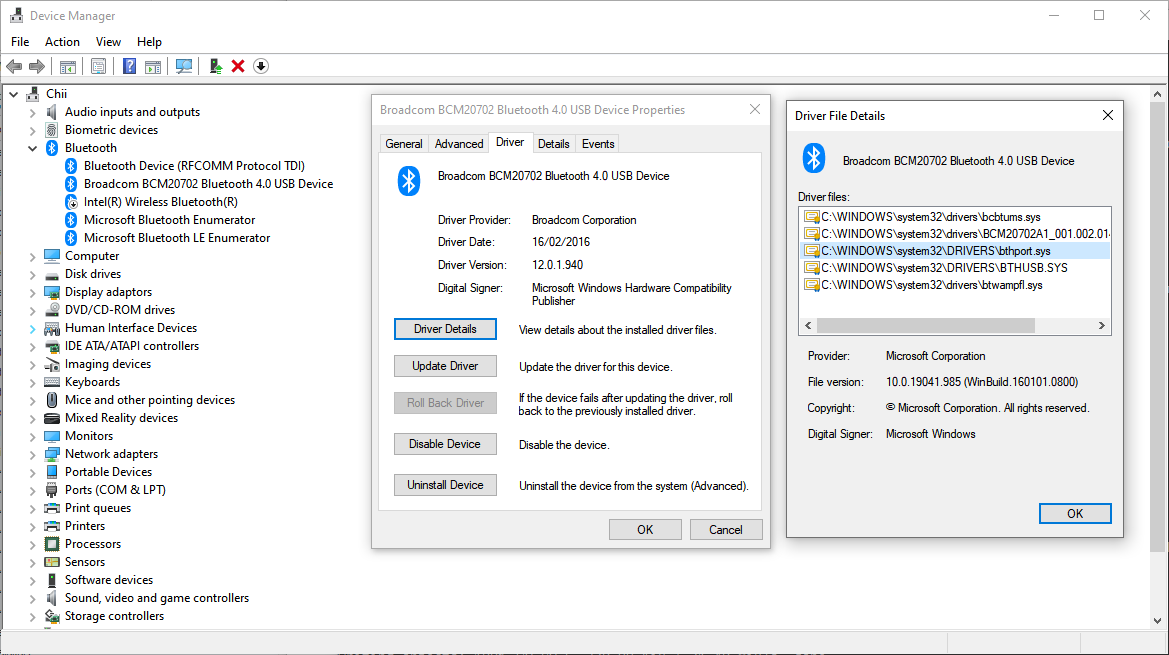
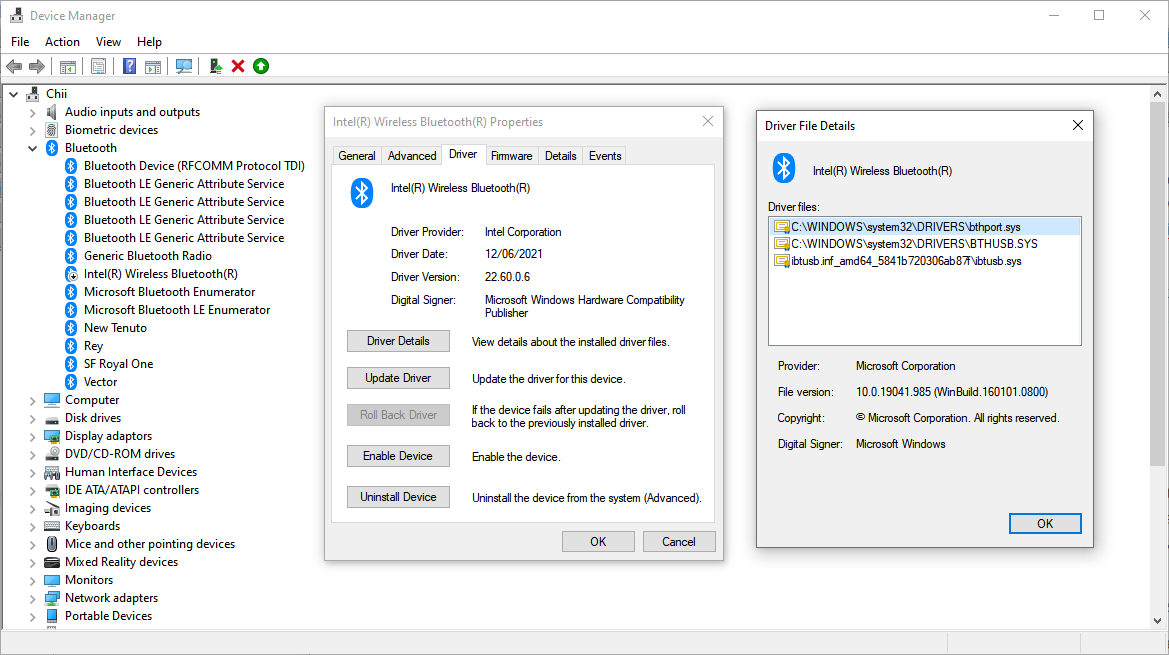
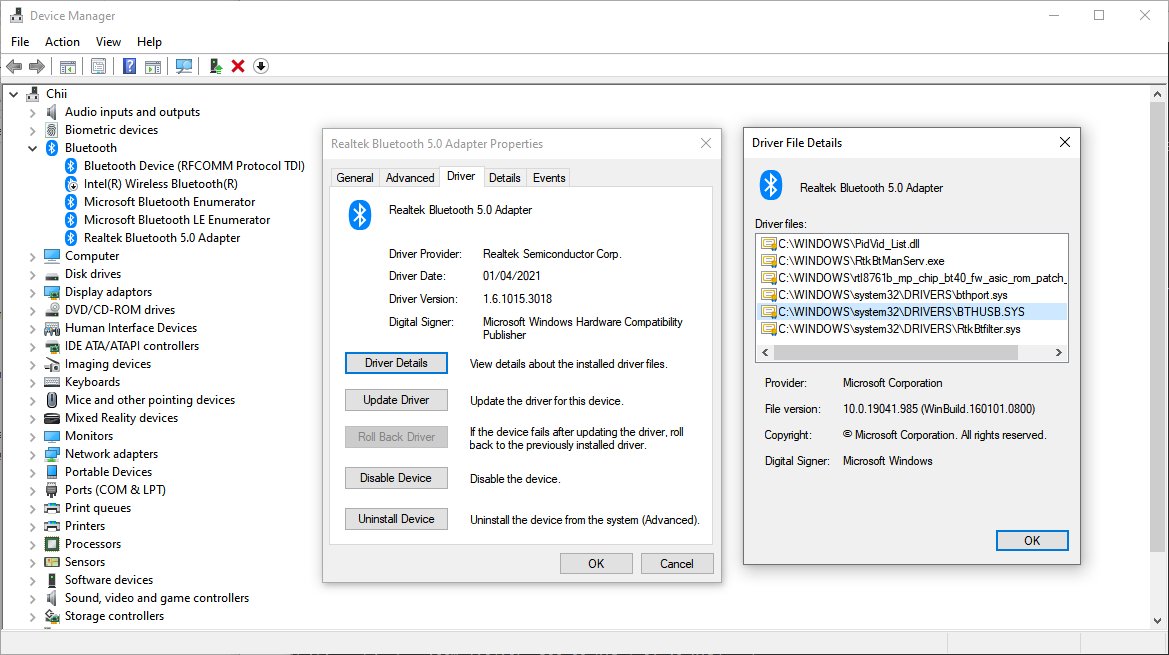
Right-click on the Start/Windows button and select Device Manager. This'll show you a tree of all
of your computer's hardware. Under the Bluetooth you should see a Bluetooth Adapter (the name may
vary, as you can see in the the screenshots below); right click the the adapter and select
Properties, then on the Driver tab click the Driver Details button. This should list multiple
files, but the crucial ones you should expect to see are bthport.sys and BTHUSB.SYS.